When you first launch Panaptic, the screen you see will depend on your how your user has been configured.
Most users will start in the ‘User Session’ task, which looks similar to this:
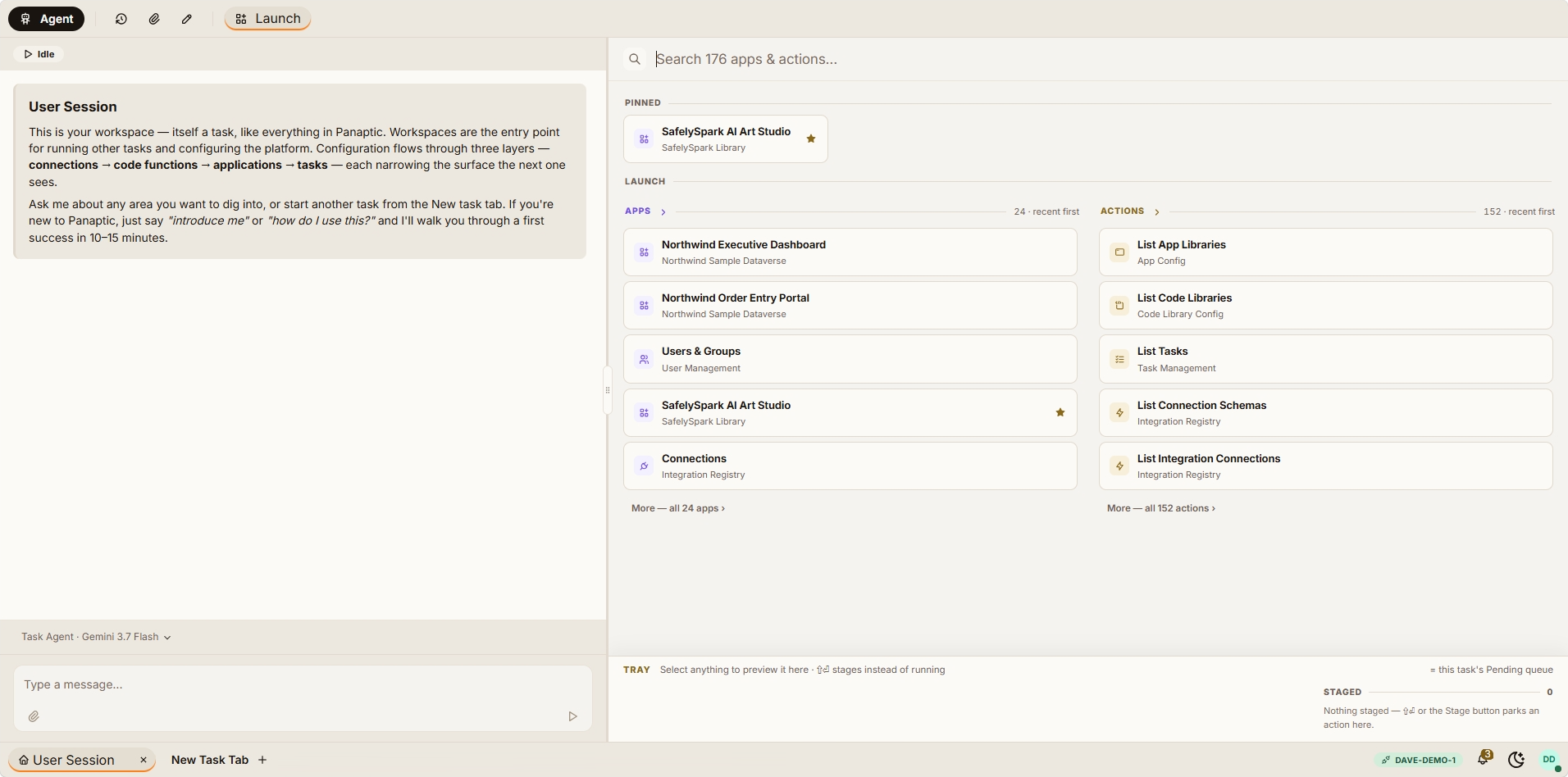
This screen is divided into the following areas:
- The Agent Panel - enter agent commands and view responses.
- The Operation Panel - interact with operations, apps, actions, and data results.
- The Operation Tab Bar - switch operations, launch new operations, or view operation history.
- The Task Tab Bar - switch tasks or launch new tasks.
- The Status Tray - view user profile, organization profile and notifications.
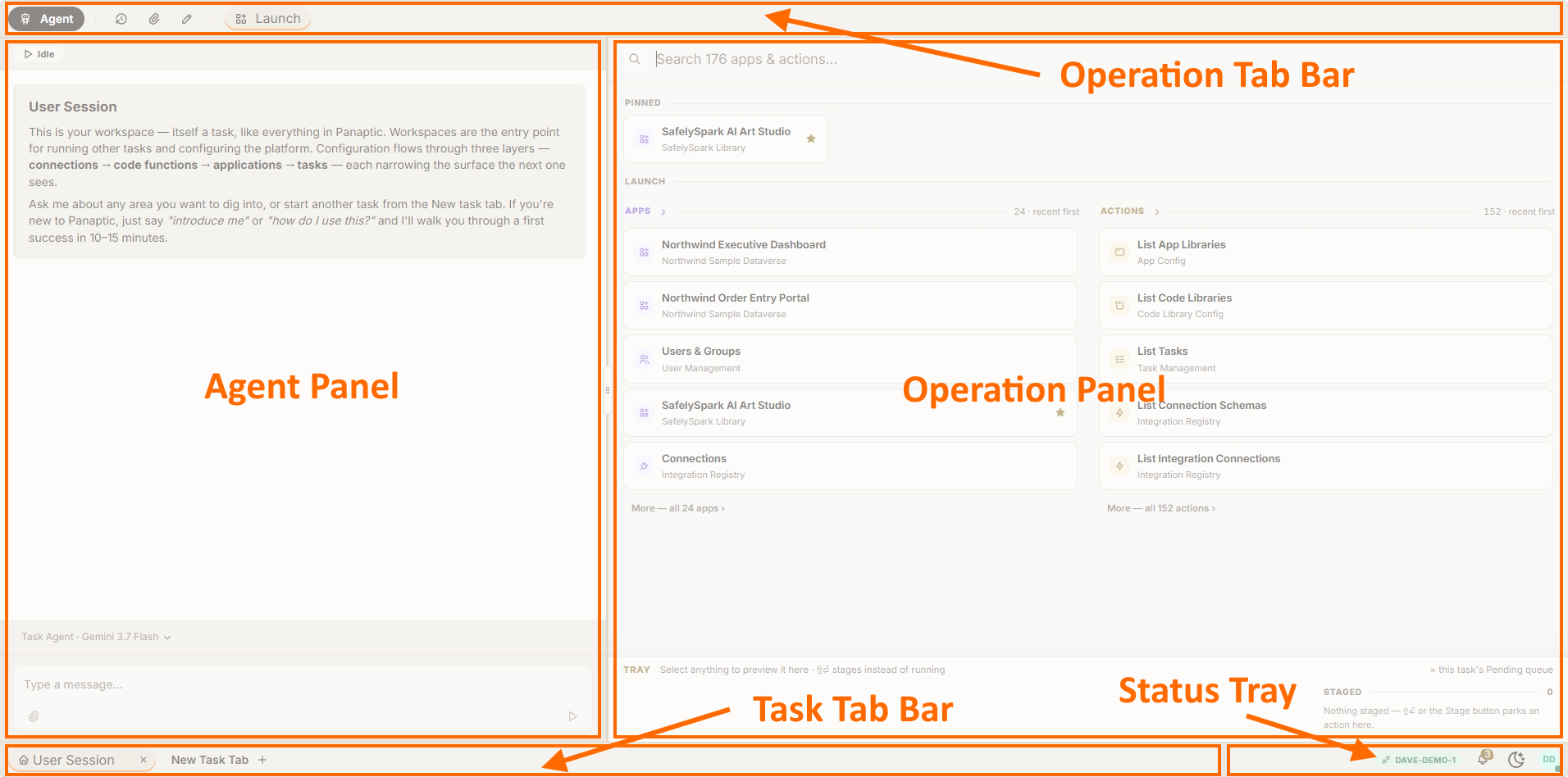
Below are brief introductions to each area. For more detail, refer to the relevant documentation page.
The Agent Panel
In this area you can type direct commands to the Panaptic agent.
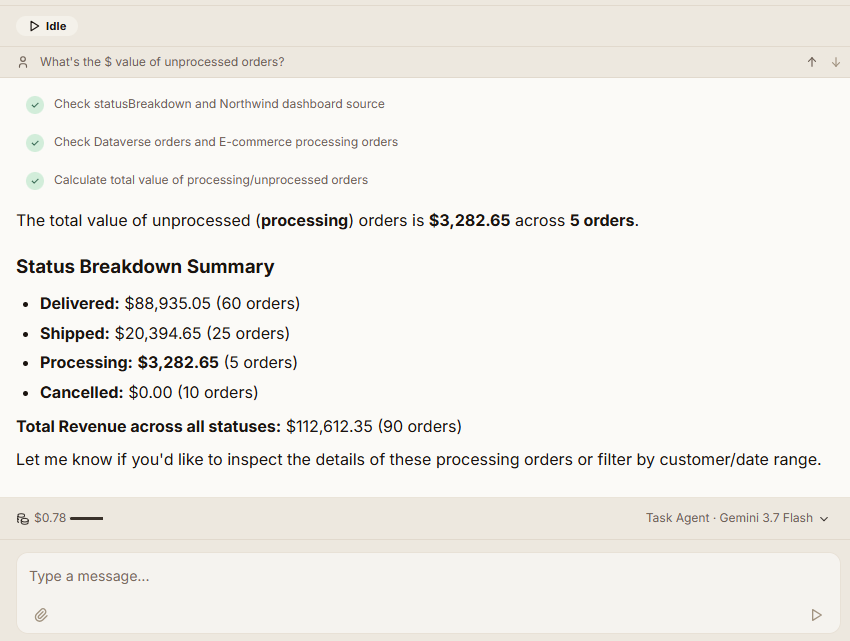
Commands are written in plain language. The agent will use the command to determine a goal and perform a series of steps to reach that goal. Once completed the agent will respond with the results and status of the command.
The agent only has permission to perform operations in Panaptic that are available to the current task. As an administrator on the User Session task, this means it can create and edit connections, apps, data spaces and so on. However, if a task is configured to provide only a few operations, say, fetch new orders or describe products in a product catalogue, then the agent in that task has the same limitations.
For more information, see The Agent.
The Operation Panel and Tab Bar
The Operation Panel shows a single operation at a time.
An operation can be one of the following:
- An app - A fully interactive app, built by you. Panaptic provides some apps for convenience.
- An action - Results for a single-purpose Panaptic action. Shows the action inputs and outputs.
- A data result - View of a single data result. The view will show data in the most appropriate way.
Operations appear on the Operation Tab Bar when opened, where you can switch between them.
The same panel can also show:
- The History view - Lists all previously run operations. Click one to open it in a new tab.
- The Attachments view - Lists all previously uploaded files, which can be easily referenced.
- The Pending Operation view - You can stage operations before running them, for convenience.
- The Launch view - Launch apps and actions as new tabs. Search all available operations.
For more information, see Operations or Applications.
The Task Tab Bar
The Task Tab Bar allows you to switch between different Tasks. Each Task can define the operations, agent, and other features available to the user. As such, the Agent Bar and Operation Tab Bar may or may not appear when switching tasks.
Click New Task Tab to open the Task Launcher.
From here, you can start a new Task, which will appear in the Task Tab Bar, or resume a previous Task.
Some Tasks may be labelled as a Workspace. A Workspace is special type of task that can be assigned to users as their starting Task.
For more information, see Tasks & Workspaces.
The Status Tray
In the Status Tray is information regarding:
- Your Panaptic profile - the name of your Panaptic tenant and current user session.
- Notifications - click to open the Notification tray and view messages from the platform.
- Colour Theme - click to switch between Dark and Light theme.
- User Profile - click to sign-out of your Panaptic tenant
For more information, see Users & Groups and Tenants.